Manually send meeting notes to team Slack channels
How to share meeting takeaways in any Slack channel in one click
If your team communicates in Slack and uses Range to manage meeting agendas and notes, the “Share in Slack” button is the best way to simplify your post-meeting workflow and keep cross-functional partners in the loop.
Note: in order to manually send meeting notes to a Slack channel, you will first need to connect Range and Slack, create at least one meeting agenda, and capture notes and action items in one or more meeting sessions.
In just one click, you can share the takeaways from a recent meeting in any team Slack channel. Here’s how it works:
-
Visit your Meeting Dashboard, then open an existing agenda under the “All agendas” tab.
-
Visit “Past sessions” to see the notes and action items from prior meeting sessions.
-
Choose a date from the dropdown menu to access the meeting notes from a specific meeting session.
-
Click the “Share in Slack” button.
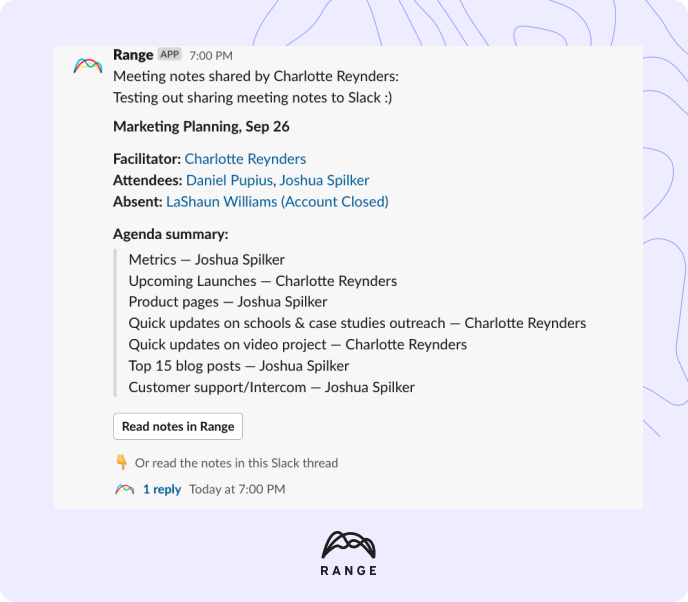
A dialog box will appear. Choose a Slack channel from the dropdown menu and write up an (optional) message to provide additional context. **Note: **Only public Slack channels will appear in the dropdown menu. Then, click “Send.” In your chosen Slack channel, you’ll see a summary of the meeting notes and action items, plus an option to access those notes in Range or read the full notes in a Slack thread.
Questions? Reach out to feedback@range.co or contact us below.