Create and copy meetings in Range
Get started running your team meetings in Range
Running more efficient, productive, and inclusive meetings is something we all want, and our Meetings tool will help you accomplish this goal.
If you’re ready to start creating your first meetings to facilitate in Range — or if you’re looking to copy an existing meeting — this article will walk you through the simple steps in the process. But before you get started, there are a few tips and recommendations we want to share with you.
Tips and common practices
-
Meetings is ideal for recurring team meetings — Meetings is especially well-suited for recurring team meetings since it helps you manage recurring agenda topics, action items, and notes across multiple meeting sessions.
-
Add teams to meetings — Adding a team to a meeting ensures anyone on that team, as well as attendees, receives meeting notes.
-
Review meeting notes in Slack — By subscribing a Slack channel to receive your team’s Range updates, your and your teammates will be able to review meeting notes in Slack. Notes will be automatically shared in the Slack channel when the meeting session is ended.
-
Run check-in and check-out rounds — We recommend running check-in and check-out rounds during your meetings. These are opportunities to check in with your teammates attending the meeting, create more inclusive meetings, and increase the likelihood that everyone participates in the discussion.
How to create a new meeting
Now that you’ve got a few ideas for how to get the most out of using Range for your team meetings, let’s create one! After navigating to the Meetings screen in Range, here’s what you’ll want to do:
-
Click the New agenda button
-
Name your meeting
-
Select a template to use for your meeting our click Create agenda to build your own meeting agenda
-
Review and edit your meeting topics
-
Click Create agenda
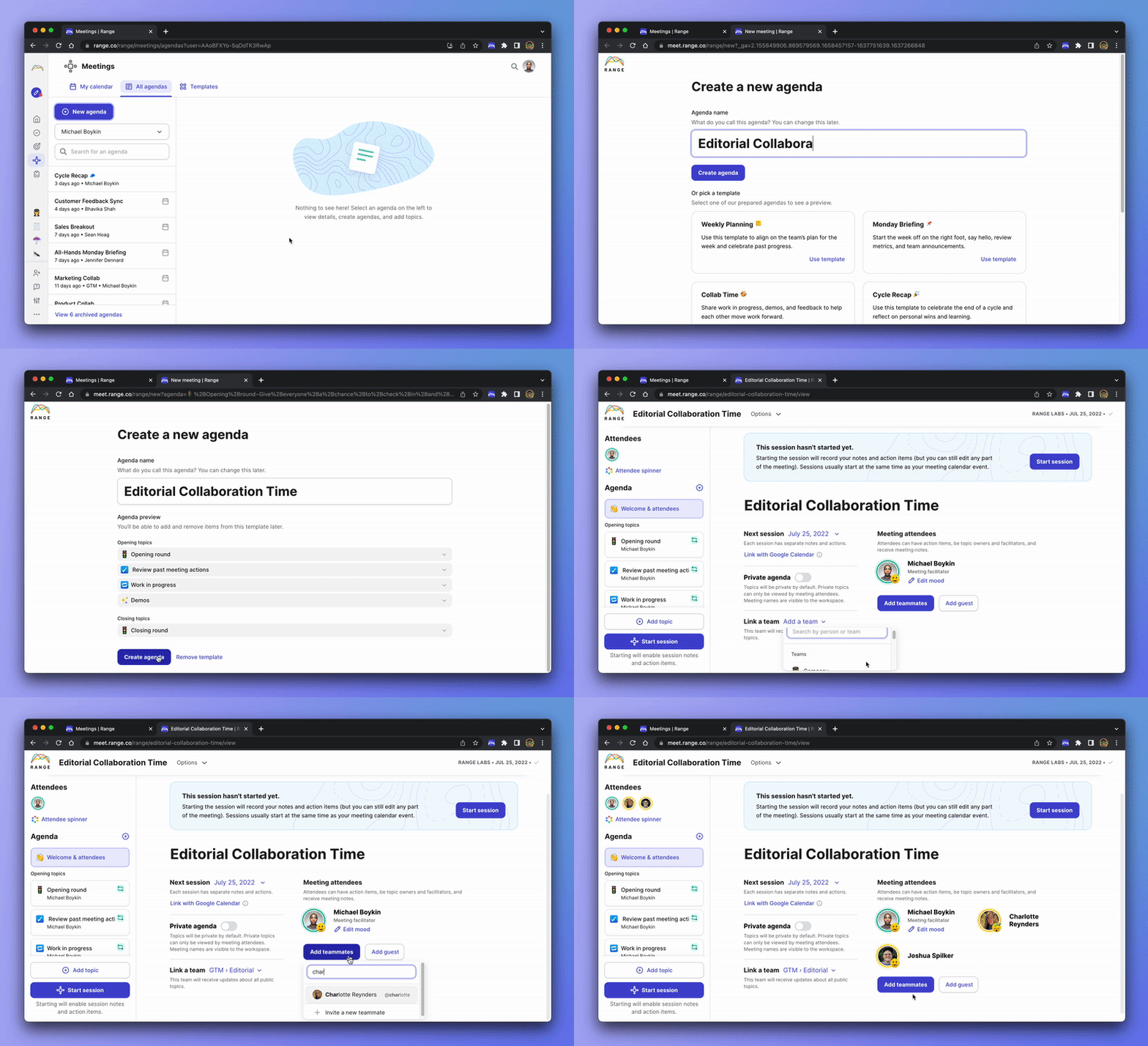
After that, you’ll then land on your meeting’s welcome screen. Here, you’ll be able to:
-
Link with calendar — This allows you to automatically sync attendees, session dates, and meeting attendees based on the calendar event.
-
Add attendees — You can either add attendees individually or add whole teams to the meeting to speed up the process.
Adding meeting topics
Next, it’s time to start building your agenda by adding topics to the meeting. We’ve written a more detailed help article on adding new topics to meetings, but let’s touch on what’s intended here.
Both the opening and closing topics sections are for recurring topics (meeting topics you discuss every session). Just click the Add recurring topic items under the sections to add a new topic.
Here are some more tips on the topic sections:
-
For Opening Topics, you might include items such as review metrics and goals, review project plans or Asana project boards, bug review, or cycle review. You can also gather one-off agenda topics from everyone in the meeting and add them to the agenda. Go around the room and quickly ask each person if there’s anything else they want to discuss during the session.
-
For Closing Topics, you might consider including forward-looking topics that prepare you for work between the current session and the next, such as cycle review.
Tip: All the topics and details you add are automatically saved, so you don’t need to search for a save button — there isn’t one.
How to copy a meeting
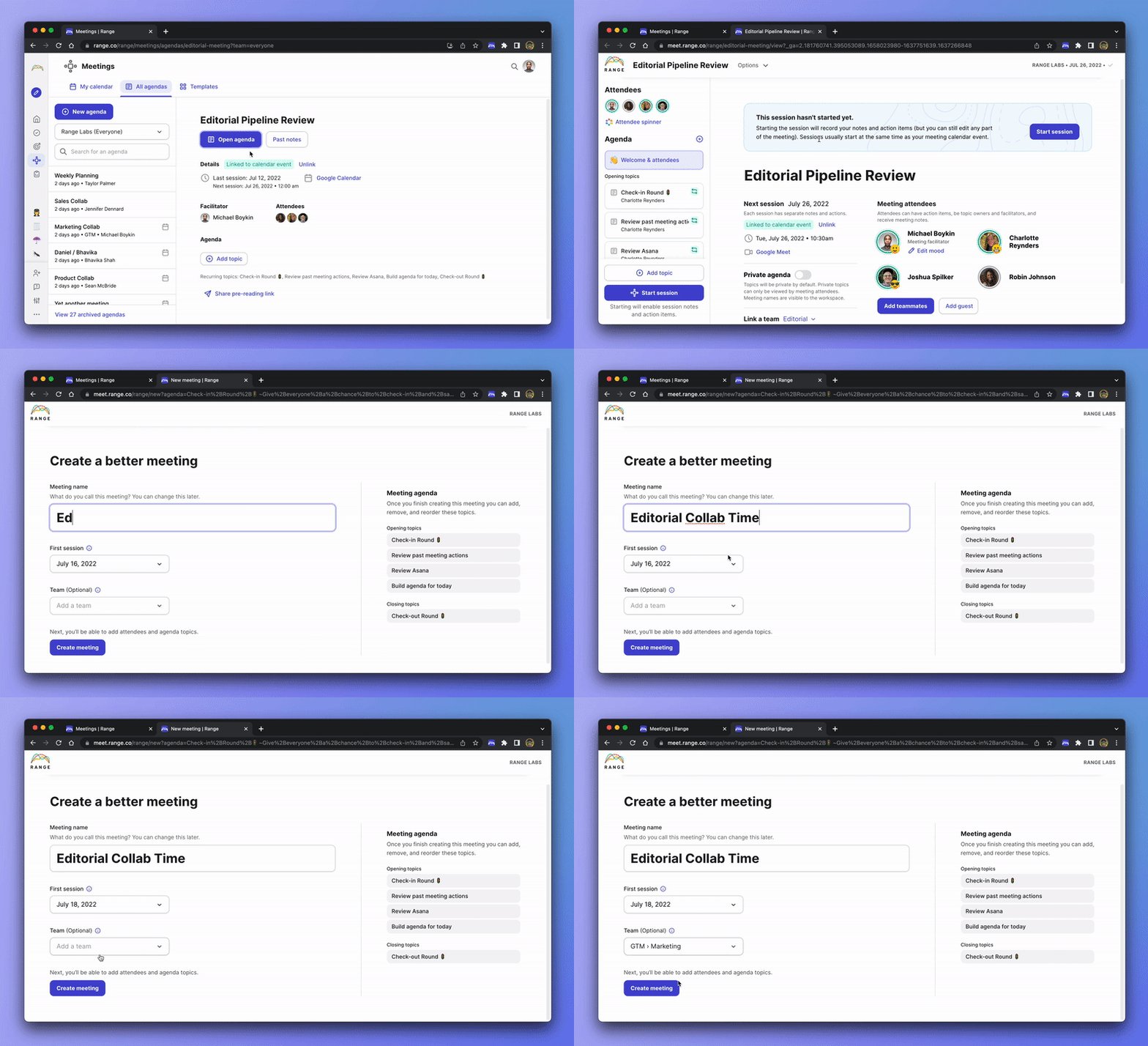
If there’s an existing meeting in your workspace’s instance of Range that you want to copy — perhaps you like the way the agenda has been set up and want to do the same — setting up your new meeting is a very quick process.
-
Navigate to the Meetings screen in Range (https://range.co)
-
Click on the name of the meeting you want to copy
-
Click the Options dropdown at the top of the page near the meeting name
-
Click Copy meeting
-
Enter a name for the meeting, schedule the first session, and add a team
-
Click Create meeting
Note: Copying an existing meeting will copy all the agenda topics, including the descriptions! It will not copy the attendees.
After you’ve successfully copied your meeting, you’ll then be able to make edits to the various topics, descriptions, and agenda.
Additional notes about Meetings
Before we wrap up this article, we want to share with you some additional notes about our Meetings tool.
Meetings have two modes: editing and facilitating. Here’s what this means in practice for you and your team:
-
Before a meeting is started you cannot add notes or action items but you can add and edit topics and other meeting details.
-
After a meeting is started, you can still add and edit topics, edit other meeting details, and you can add action items and notes.
-
After a meeting is ended, the notes and action items will automatically be emailed to all attendees and shared in any slack channels that are subscribed to the team in the meeting.
-
After a meeting is ended, you cannot edit the notes and action items.